What JPEG and WebP Quality Setting Should You Use? We Tested 8 Photos
We encoded eight camera photos at every quality step from 50 to 95 and measured file size and visual similarity. Here is where the savings are, and where they stop.
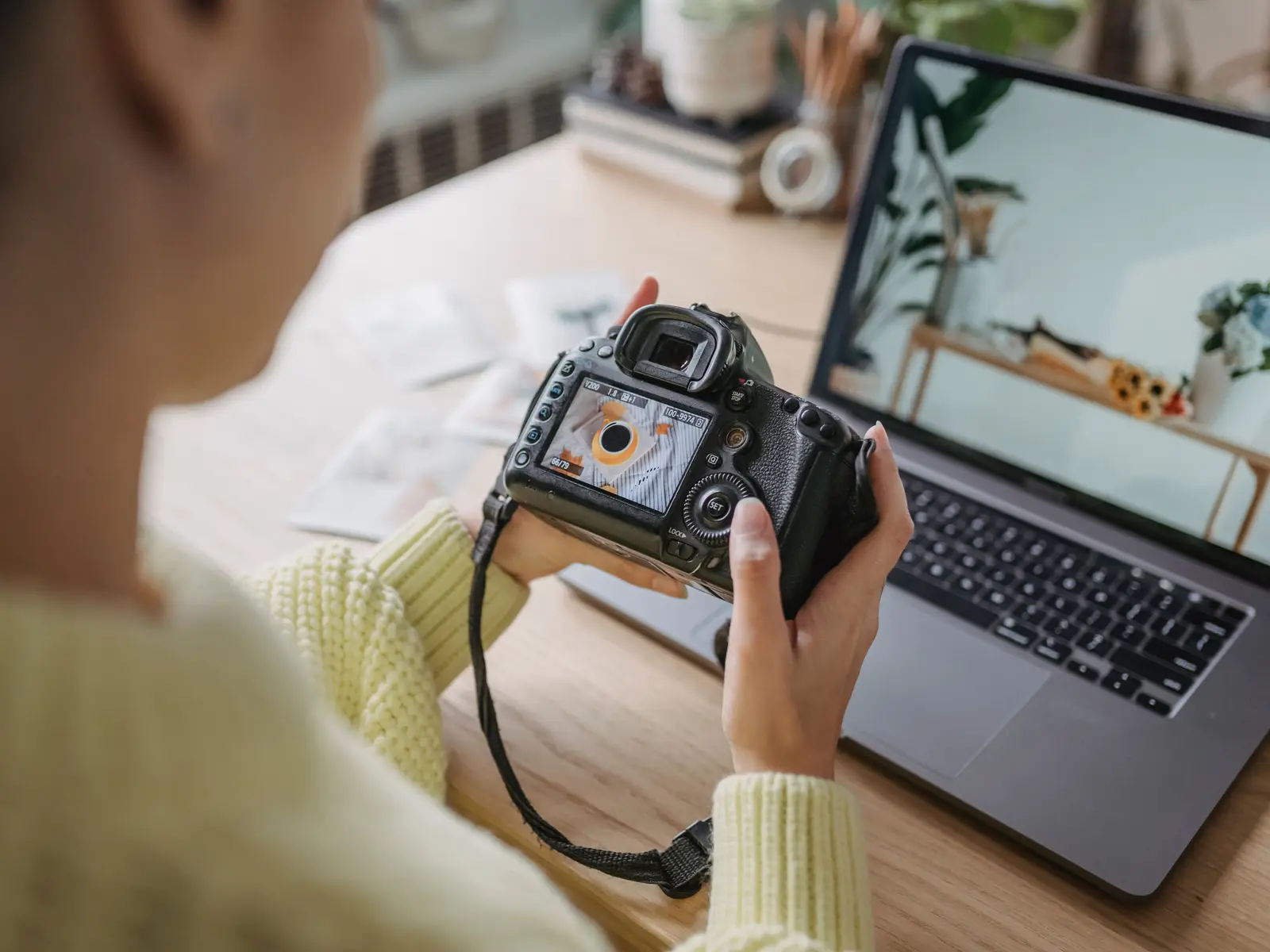
Photo by George Milton on Pexels.
Every image compressor has a quality setting. Most people leave it on the default or pick a number that sounds safe, like 90. We wanted actual numbers, so we ran the test ourselves.
Short answer: for photos on a website, use JPEG 75–85 or WebP 75–85. Above 85 the file grows quickly and you see very little difference. Below 70 you save only a few more kilobytes. WebP at the same visual similarity came out 20–30% smaller than JPEG.
How we tested
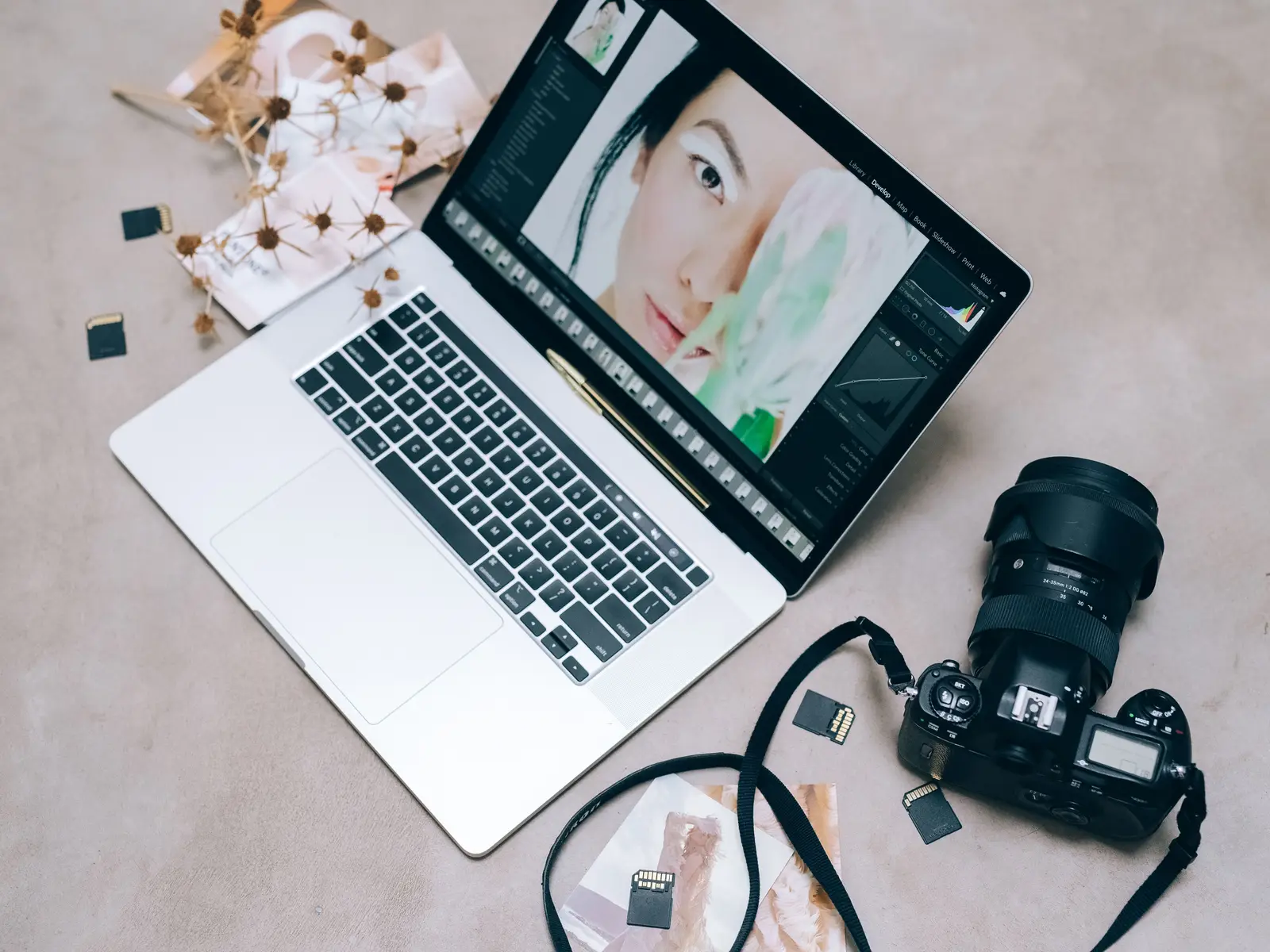
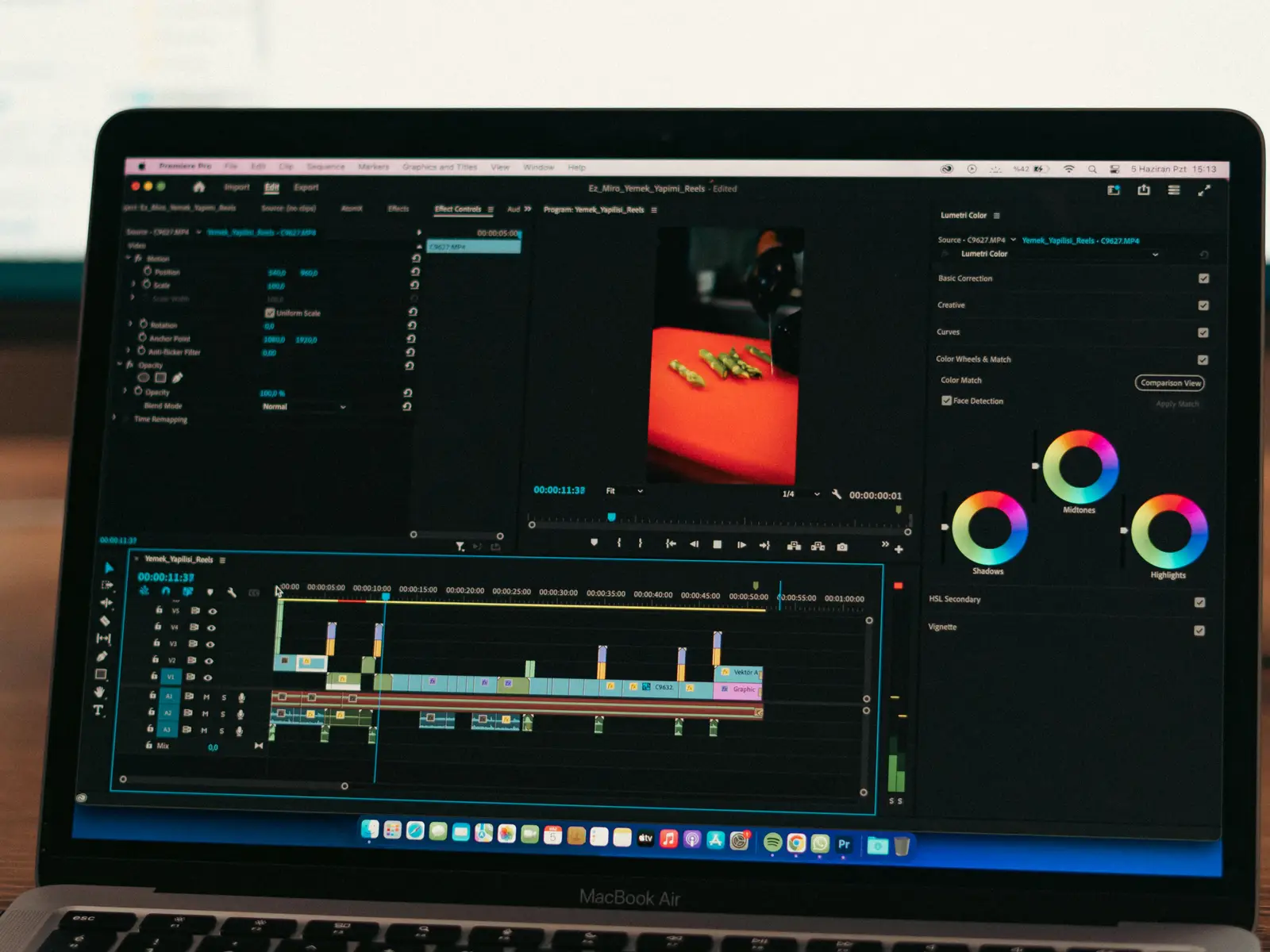
- Photos: eight real camera photos from Pexels, 24–30 megapixels each. They cover a mix of subjects: a camera close-up, desks with laptops, notes and plants, and a screen showing editing software.
- Size: each photo was first resized to 1600 px wide, a typical width for a blog or product image.
- Encoders: sharp 0.35 (libvips 8.18 with mozjpeg and libwebp 1.6), at quality 50, 60, 70, 75, 80, 85, 90 and 95.
- Measurement: file size, plus SSIM, a standard score for how closely a compressed image matches the original. A score of 1.0 means identical. We calculated it on brightness in 8×8 pixel blocks, compared against the uncompressed 1600 px version.
All values below are medians across the eight photos.
The results
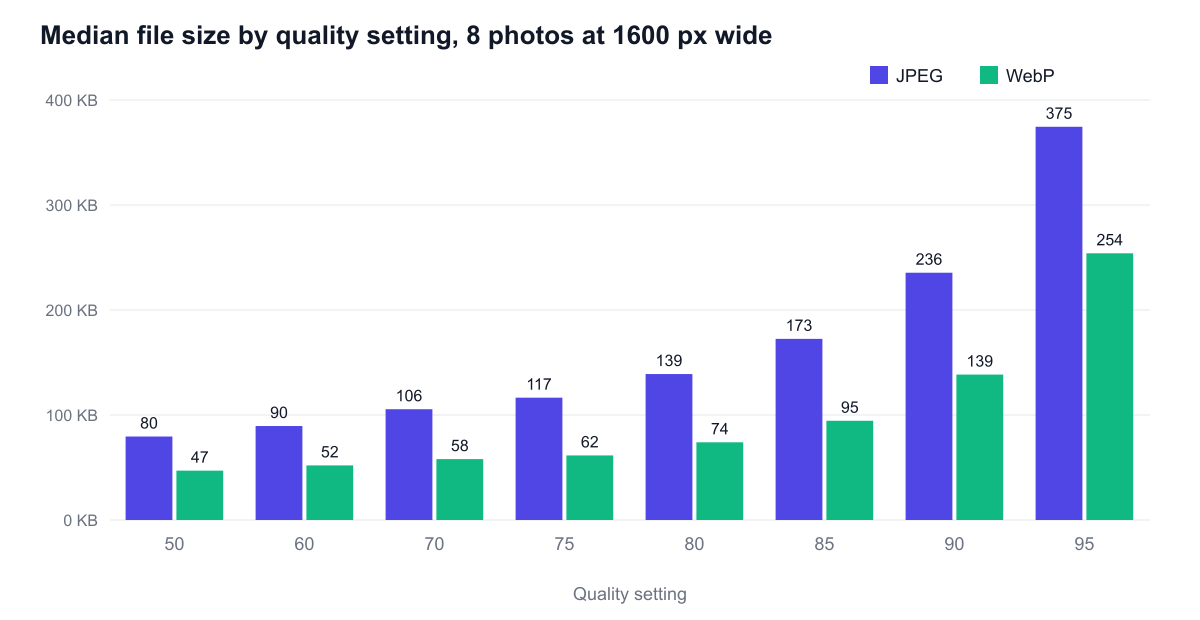
| Quality | JPEG size | JPEG SSIM | WebP size | WebP SSIM |
|---|---|---|---|---|
| 95 | 375 KB | 0.986 | 254 KB | 0.985 |
| 90 | 236 KB | 0.981 | 139 KB | 0.978 |
| 85 | 173 KB | 0.978 | 95 KB | 0.974 |
| 80 | 139 KB | 0.976 | 74 KB | 0.972 |
| 75 | 117 KB | 0.974 | 62 KB | 0.969 |
| 70 | 106 KB | 0.972 | 58 KB | 0.969 |
| 60 | 90 KB | 0.970 | 52 KB | 0.966 |
| 50 | 80 KB | 0.965 | 47 KB | 0.965 |
The same setting also produced very different sizes for different photos. At JPEG 80, the smallest file was 101 KB and the largest was 219 KB. Busy texture, such as fabric, foliage or a wood grain desk, costs bytes. Smooth backgrounds are cheap.
What the numbers mean
1. Most of the waste is above 85
Going from 95 to 85 cut the median JPEG from 375 KB to 173 KB, 54% smaller. The SSIM score dropped by less than 0.01. If your tool defaults to 90 or 95, lowering the setting is the single largest saving you can get without changing anything else.
2. Below 70, you trade quality for very little
Going from 70 down to 50 saved only 26 KB more on a typical JPEG (106 KB to 80 KB). The SSIM loss across that range (0.0078) was almost the same as the loss from 95 to 85 (0.0082), which saved 202 KB. You lose the same amount of quality for about an eighth of the saving. If a file is still too large at 70, lower the pixel dimensions rather than the quality. See why resizing beats lowering quality.
3. The same number means different things in JPEG and WebP
"Quality 80" is not a shared scale. WebP 80 scored 0.972, about the same as JPEG 70 (0.972), but it was 74 KB against 106 KB. WebP 90 (0.978, 139 KB) roughly matched JPEG 85 (0.978, 173 KB). Compared at equal similarity, WebP saved about 20–30%. Compared at the same number, WebP looks even better than that, but part of that gap is just lower quality.
4. Look where detail is finest
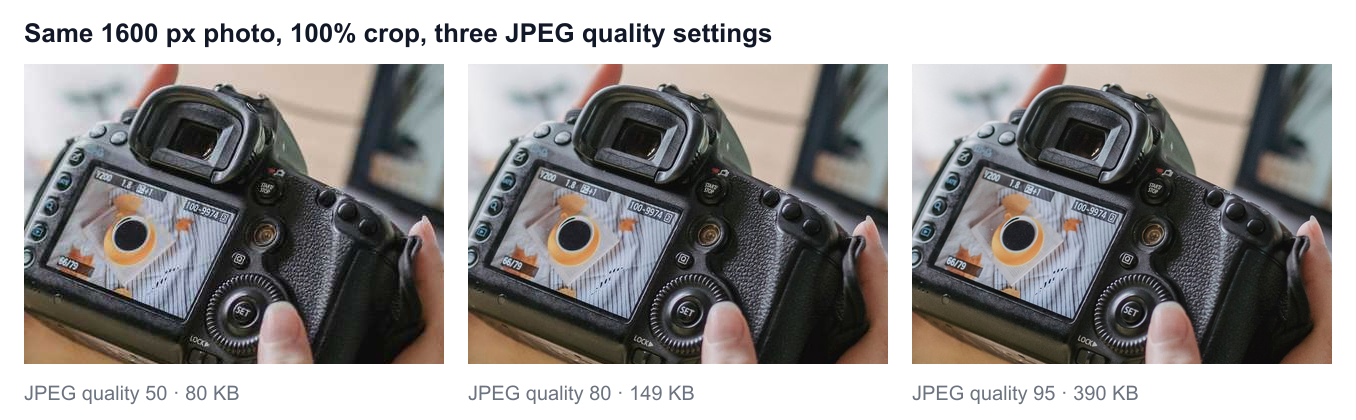
These are 100% crops (one image pixel per screen pixel) of the same 1600 px photo. At normal viewing size, 80 and 95 are very hard to tell apart, even though the 95 file is more than twice as large. Small text and fine edges show the losses first: look at the numbers on the camera's screen. When you check your own images, zoom in on the most detailed area, not the middle of a blurred background.
Recommended settings
| Use | Format and setting |
|---|---|
| Blog, article and product photos | JPEG 75–85 or WebP 75–85 |
| Large full-width hero photo | WebP 70–80, sized to the layout (not larger) |
| Photography portfolio, where detail is the point | JPEG 85–90 |
| Upload form with a strict KB limit | Resize first, then JPEG 70–80 |
| Screenshots, logos, text, transparency | Not a quality question: see PNG vs JPEG vs WebP |
| Archive copy you will edit later | Keep the original, do not recompress it |
Hitting a specific size, like 100 KB
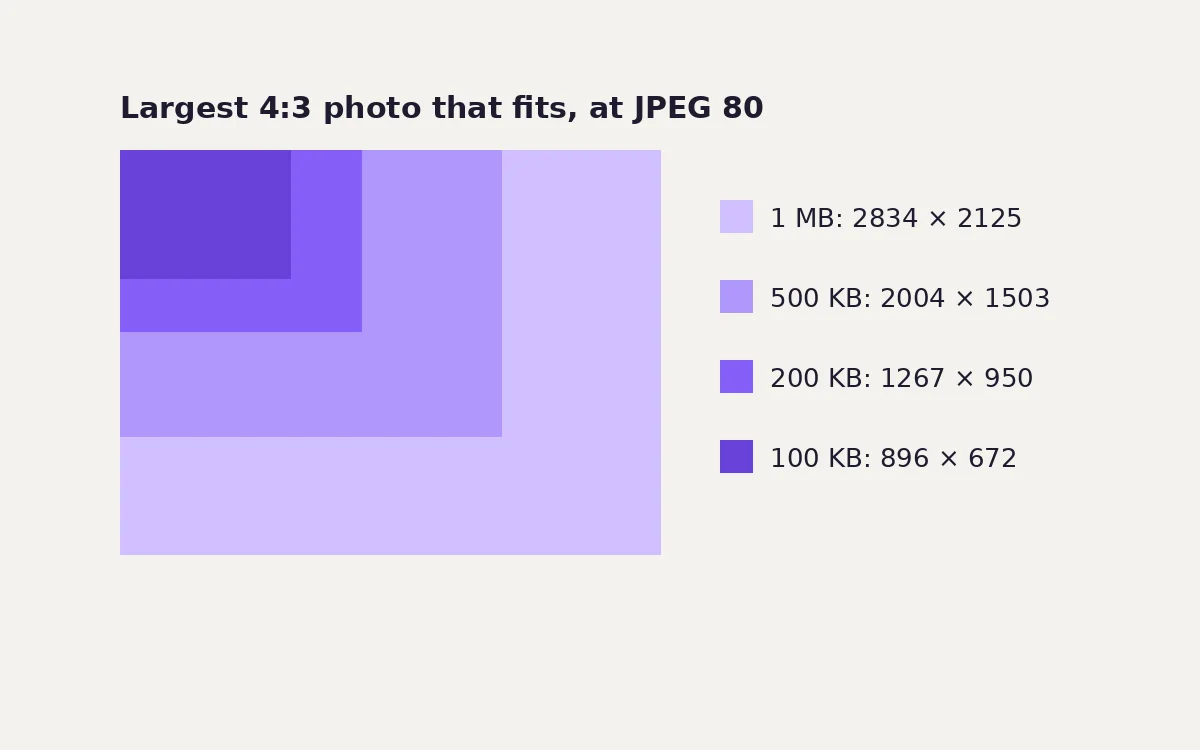
If a form says "max 100 KB", lowering quality at full width is the slow route. At 1600 px wide, our typical photo needed about JPEG 65–70 to get near 100 KB. At 1200 px, the same photos reached a median of 102 KB at JPEG 85: a better-looking result at the same size. Pixel count controls file size more than the quality slider does.
The compress tool shows the exact output size in KB as you move the quality slider, so you can stop as soon as you hit the limit. It runs in your browser, so the file is not uploaded anywhere.
What changes in a browser tool
The numbers above come from sharp, a server-side library. Browser-based tools, imgstools included, encode with the browser's own canvas encoder instead. We repeated the sweep in Chromium 141 with the exact drawImage and toBlob calls the compress tool makes, on four public-domain and CC0 photos plus a screenshot and a flat graphic. The pattern held, and a few browser-specific facts turned up:
| Quality | JPEG (KB per megapixel) | WebP (KB per megapixel) |
|---|---|---|
| 70 | 132 | 96 |
| 80 | 166 | 125 |
| 85 | 199 | 155 |
| 90 | 250 | 208 |
| 95 | 353 | 304 |
| 100 | 1,114 | 1,348 |
- The browser default is not 80. When a web app saves a JPEG without passing a quality, Chrome uses 0.92: the output was byte-for-byte identical to an explicit 92. On our photos that was 61–75% larger than quality 80. For WebP the default is 0.80.
- Quality 100 is a different kind of file. JPEG 100 was 3.2 times the size of JPEG 95. Chrome's WebP at 100 switches to lossless mode, a perfect copy that was larger than JPEG 100 for photos.
- WebP's advantage varies by photo. Matched by SSIM against JPEG 80, Chrome's WebP saved between 9% (a cat with fine fur) and 39% (a launch photo with smooth sky). That brackets the 20–30% we measured with libwebp.
Exact sizes will differ between encoders, apps and phones. When the number matters, trust the size readout in front of you, not a table.
Summary
- Start at 80 for JPEG or WebP photos. Check the most detailed part of the image at 100%.
- Go to 85 if you see blockiness or smudged fine text. Go to 75 if you need a smaller file.
- Don't go above 90 for web display. Don't go below 70: resize instead.
- Use WebP where it is accepted. It was 20–30% smaller at the same visual similarity.
Keep exploring