PNG vs JPEG vs WebP: We Saved a Photo, a Screenshot and a Logo in Each
The best format depends on what is in the image. Measured sizes for a photo, a UI screenshot and a transparent logo show where each format wins, and where a wrong choice costs 25×.
Photo by Muhammed Çetinkaya on Pexels.
"Which image format should I use?" has no single answer, because the three formats compress in completely different ways. The fastest way to see it is to save the same kinds of images in each format and compare the results.
The three test images
- Photo: a real camera photo resized to 1440 × 1072 px.
- Screenshot: a 1440 × 900 dashboard-style interface with a sidebar, cards and rows of text.
- Logo: a 1000 × 1000 px circular logo on a transparent background.
Each image was saved four ways with sharp 0.35: PNG (maximum compression), JPEG at quality 92, WebP at quality 80 (lossy), and WebP lossless. We also measured SSIM, a score where 1.0 means the result is identical to the source.
Results
| Image | PNG | JPEG 92 | WebP 80 (lossy) | WebP lossless |
|---|---|---|---|---|
| Photo, 1440 × 1072 | 3,043 KB | 320 KB | 121 KB | 1,654 KB |
| Screenshot, 1440 × 900 | 95 KB | 88 KB, blurry edges on text | 35 KB | 20 KB |
| Logo, transparent | 34 KB | 38 KB, transparency lost | 16 KB | 14 KB |
Photos: never PNG
The photo was 3 MB as PNG and 121 KB as WebP, a 25× difference with no visible gain from PNG. PNG is lossless: it stores the exact colour of every pixel. A photo has millions of slightly different pixels, so there is very little repetition for it to compress. JPEG and WebP are designed for this kind of image. They throw away detail the eye is unlikely to notice.
Use: WebP or JPEG at 75–85. Our quality test shows where the sweet spot is.
Screenshots: lossless, ideally WebP
On the screenshot, JPEG was only slightly smaller than PNG, and it was worse. JPEG's compression is built for smooth photographic shading. Around sharp text it leaves faint halos and smudges, known as "ringing".
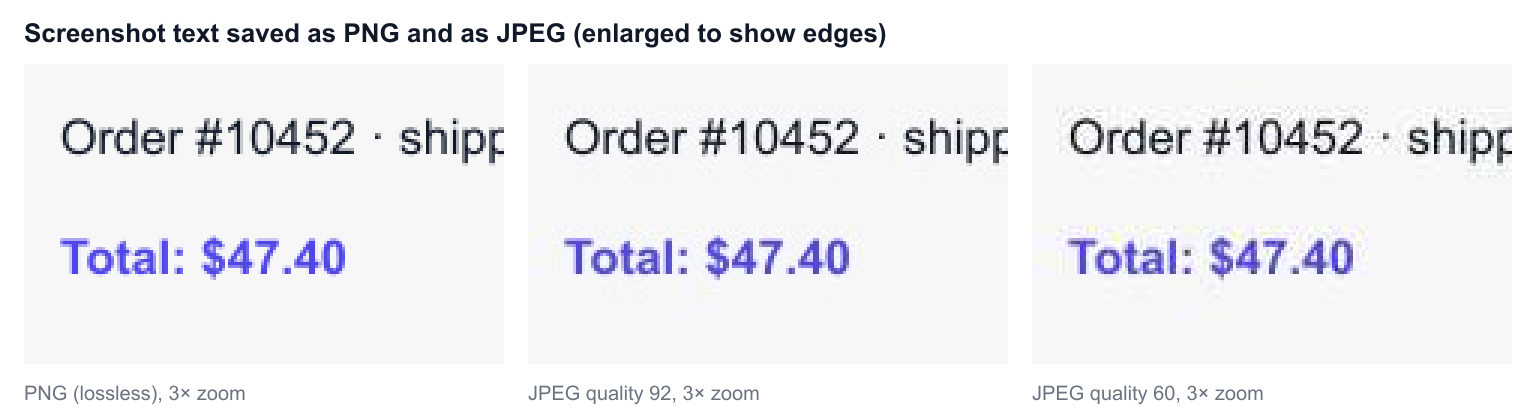
Lossless WebP was the clear winner: 20 KB, against 95 KB for PNG, with every pixel kept exactly. Screenshots contain large flat areas and repeated shapes, which lossless compression handles very well.
Use: lossless WebP where it is accepted, PNG everywhere else. Avoid JPEG for anything with text, sharp lines or a user interface.
Logos and graphics with transparency: PNG or WebP, never JPEG
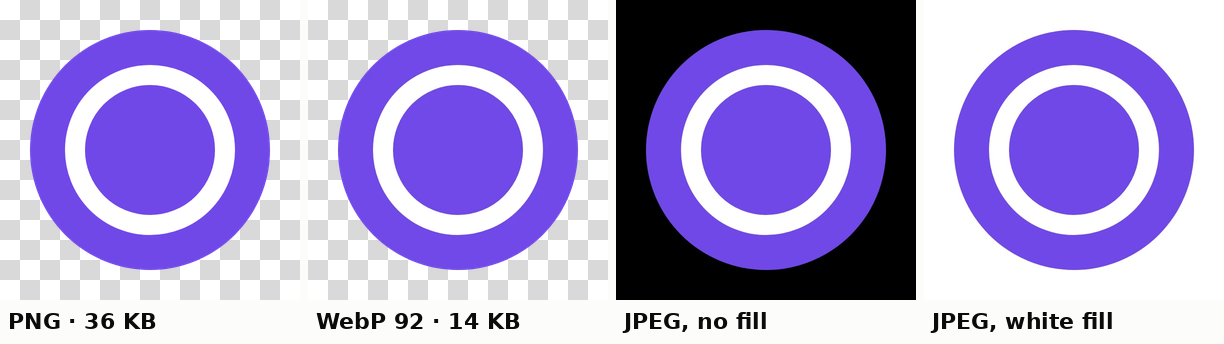
JPEG has no transparency at all. When a transparent image is saved as JPEG, the transparent areas must be filled with a solid colour, usually white. The logo above turned into a white square with a circle in it. That looks fine on a white page, and wrong everywhere else.
PNG and WebP both keep transparency. WebP was smaller in both modes. For a logo, an icon or a graphic with a cut-out background, lossless WebP or PNG keeps edges clean and transparent.
If you have the logo as an SVG (a vector file), use that for the website instead. It stays sharp at any size and is usually smaller still.
What happens in a browser tool
We repeated the comparison with Chromium 141's canvas encoder, the one the imgstools convert and compress tools use, on five public-domain and CC0 photos, a 1280 × 800 screenshot, a flat promotional graphic and a transparent logo. Most results matched, with two differences worth knowing.
- Photos as PNG were 12 to 14 times larger than JPEG 80, the same lesson as above.
- Chrome's lossless WebP was larger than PNG for the screenshot: 143 KB against 126 KB. sharp's lossless WebP was far smaller than PNG. Lossless results depend heavily on the encoder, so if you need pixel-perfect output, try both and keep the smaller. Lossy WebP at 80 looked clean on text and was only 29 KB.
- With no fill, a browser turns transparent pixels black when it saves a JPEG. That is the familiar "logo on a black box" bug. The imgstools converter paints a white background first, so you get white instead.
- Lossy WebP keeps transparency: our logo was 14 KB with a fully transparent background, against 36 KB as PNG.
Which WebP do the imgstools tools save?
The convert tool saves WebP in Chrome's default lossy mode (quality 80), and JPEG at 92. For lossless WebP, use the compress tool, choose WebP and set quality to 100: Chrome treats 100 as lossless.
A decision list
- Does it have transparency? Use PNG or WebP. Never JPEG.
- Is it a photo, or does it look like one? Use WebP or JPEG at 75–85.
- Is it a screenshot, chart, diagram or text? Use lossless WebP, or PNG.
- Is it going somewhere old or strict, like a government upload form, an email attachment or older software? Use JPEG for photos and PNG for graphics. They are accepted everywhere.
Is WebP safe to use?
For websites, yes. Every major current browser displays WebP, including Safari since version 14, released in 2020. The remaining problems are outside the browser: some upload forms only accept .jpg or .png, some older desktop apps can't open WebP, and some people expect a file they can open anywhere. In those cases, convert to JPEG or PNG for that one use and keep WebP on your site.
Converting between formats
The convert tool switches an image between PNG, JPEG and WebP in your browser, without uploading it. Two things happen automatically, and both are worth knowing:
- Converting to JPEG fills transparent areas with white, because JPEG cannot store transparency.
- Converting a JPEG to PNG does not improve quality. Anything the JPEG already lost stays lost; the file just gets bigger. Convert to PNG only when a later step needs it, such as adding transparency.
To control the quality and see the exact output size, use the compress tool instead. It saves to JPEG, PNG or WebP with a quality slider.
How we measured
Sizes come from sharp 0.35 (libvips 8.18, mozjpeg, libwebp 1.6, libpng with maximum zlib compression). Browsers and other apps use their own encoders. Their PNG output in particular is often larger, because they compress PNG less aggressively. Exact sizes will differ, but the pattern is the same in our results and in how the formats are designed: lossy formats for photos, lossless formats for text and graphics, and WebP smallest in its category.
Keep exploring