How to Crop to an Exact Aspect Ratio: 16:9, 4:5, 1:1 and 3:2 Pixel Tables
Ready-to-type pixel sizes for the most common aspect ratios, the formula for any photo, and how to centre the crop. No guessing by eye.
Photo by Lisett Kruusimäe on Pexels.
Aspect ratio is the shape of an image: its width compared with its height. When a site or an app needs one shape and your photo has another, the site crops it for you, often cutting off something you wanted to keep. Cropping it yourself to the exact ratio puts you in control.
Common ratios and where they are used
| Ratio | Shape | Common uses |
|---|---|---|
| 16:9 | Wide | Video thumbnails, presentation slides, website banners, TV and monitor screens |
| 1.91:1 | Wide | Link preview images (Open Graph), often 1200 × 630 |
| 3:2 | Classic photo | Most camera sensors, 6 × 4 inch prints |
| 4:3 | Slightly wide | Many phone camera photos, tablets |
| 1:1 | Square | Profile pictures, product grids, feed posts |
| 4:5 | Slightly tall | Portrait feed posts, often 1080 × 1350 |
| 9:16 | Tall | Stories, reels, short vertical videos, phone wallpapers |
Platforms change their recommended sizes from time to time, so check the current guidance for the exact upload size. The ratio is the part that rarely changes.
How much of your photo survives
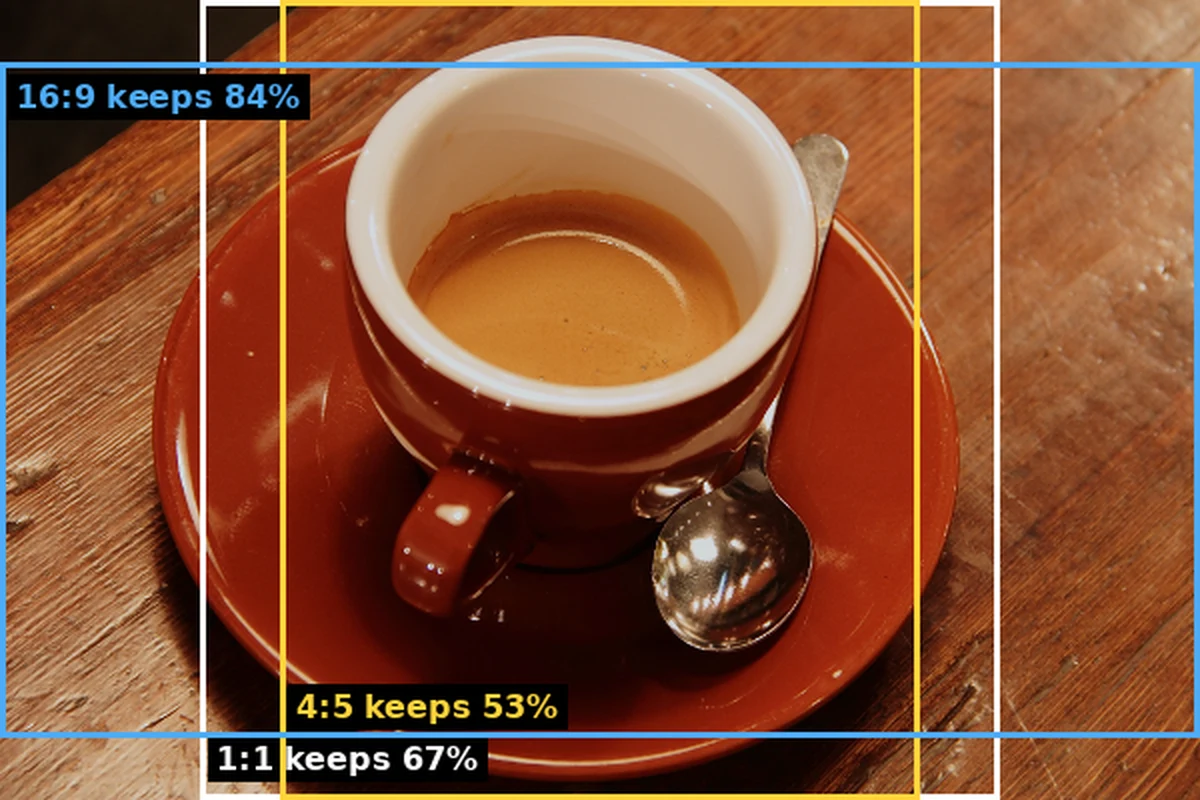
A full-height or full-width crop keeps the smaller ratio ÷ the larger ratio of the picture, where each ratio is width ÷ height. Applied to the three most common source shapes:
| Target | From 4:3 (phones) | From 3:2 (cameras) | From 16:9 (video) |
|---|---|---|---|
| 1:1 square | 75% | 67% | 56% |
| 4:5 portrait | 60% | 53% | 45% |
| 3:4 portrait | 56% | 50% | 42% |
| 16:9 widescreen | 75% | 84% | 100% |
| 1.91:1 link preview | 70% | 79% | 93% |
| 9:16 vertical story | 42% | 38% | 32% |
Switching orientation is expensive: a landscape 3:2 photo cropped to a 9:16 story keeps barely a third of the frame. If you know you will need a vertical version, shoot a vertical one. Nearby landscape shapes are cheap: going between 3:2, 16:9 and 1.91:1 costs only 7–21%.
Pixel tables
At a fixed width
Height = width ÷ ratio.
| Width | 16:9 | 1.91:1 | 3:2 | 4:3 | 1:1 | 4:5 | 9:16 |
|---|---|---|---|---|---|---|---|
| 1080 | 1080 × 608 | 1080 × 565 | 1080 × 720 | 1080 × 810 | 1080 × 1080 | 1080 × 1350 | 1080 × 1920 |
| 1200 | 1200 × 675 | 1200 × 628 | 1200 × 800 | 1200 × 900 | 1200 × 1200 | 1200 × 1500 | 1200 × 2133 |
| 1600 | 1600 × 900 | 1600 × 838 | 1600 × 1067 | 1600 × 1200 | 1600 × 1600 | 1600 × 2000 | 1600 × 2844 |
| 1920 | 1920 × 1080 | 1920 × 1005 | 1920 × 1280 | 1920 × 1440 | 1920 × 1920 | 1920 × 2400 | 1920 × 3413 |
(Link previews are usually quoted as 1200 × 630. That is 1.905:1, rounded to whole pixels.)
Largest crop from common photo sizes
These are the biggest crops you can take without upscaling:
| Photo size | 16:9 | 3:2 | 4:3 | 1:1 | 4:5 | 9:16 |
|---|---|---|---|---|---|---|
| 6000 × 4000 (3:2 camera) | 6000 × 3375 | 6000 × 4000 | 5333 × 4000 | 4000 × 4000 | 3200 × 4000 | 2250 × 4000 |
| 4032 × 3024 (4:3 phone) | 4032 × 2268 | 4032 × 2688 | 4032 × 3024 | 3024 × 3024 | 2419 × 3024 | 1701 × 3024 |
| 3024 × 4032 (4:3 phone, portrait) | 3024 × 1701 | 3024 × 2016 | 3024 × 2268 | 3024 × 3024 | 3024 × 3780 | 2268 × 4032 |
| 1920 × 1080 (16:9 screenshot) | 1920 × 1080 | 1620 × 1080 | 1440 × 1080 | 1080 × 1080 | 864 × 1080 | 607 × 1080 |
The formula for any photo
Let the photo be W × H pixels and the target ratio be r (width ÷ height, so 16:9 = 1.778, 4:5 = 0.8).
- Work out the photo's own ratio: W ÷ H.
- If the photo is wider than the target (W ÷ H > r), keep the full height: crop height = H, crop width = H × r.
- If the photo is taller or narrower than the target, keep the full width: crop width = W, crop height = W ÷ r.
- Round down to whole pixels.
Example: a 4032 × 3024 phone photo cropped to 4:5 (r = 0.8). The photo's ratio is 1.333, which is wider than 0.8, so keep the height: 3024 × 0.8 = 2419 × 3024.
Centring the crop
To keep the middle of the image:
- X offset = (W − crop width) ÷ 2
- Y offset = (H − crop height) ÷ 2
For the example above: X = (4032 − 2419) ÷ 2 = 806, Y = 0.
You rarely want the exact centre, though. Move the crop towards your subject and keep the same width and height. Following the rule of thirds, a person's eyes often look best about a third of the way down the frame.
Doing it in the imgstools crop tool
The crop tool lets you drag a box, or type exact values: X, Y, width and height, in pixels. To get an exact ratio:
- Look up or calculate the width and height using the tables or the formula above.
- Type them into the width and height fields.
- Type the X and Y offsets, or drag the box to position it over your subject. The size stays the same while you move it.
- Export. The crop tool saves a lossless PNG.
Then finish the image for its destination:
- Need a specific pixel size, such as 1080 × 1350? Use the resize tool on the cropped image. Because the ratio already matches, nothing gets stretched.
- Is it a photo going online? Run it through compress to get a small JPEG or WebP. A cropped photo saved as PNG can be several megabytes. See why resizing and compressing in the right order matters.
Common mistakes
- Resizing to a new ratio instead of cropping. Typing 1080 × 1080 into a resize tool for a 3:2 photo squashes it. Crop to 1:1 first, then resize.
- Cropping too tight on a platform that crops again. Profile pictures are often shown in a circle. Leave space around the face.
- Upscaling a small crop. A 600 px wide crop stretched to 1920 px will look soft. Our upscaling test shows why.
- Cutting off important text near the edges. Some apps place buttons or captions over the edges of tall images. On 9:16 stories, keep text and faces out of roughly the top and bottom 15%.
- Cropping a tilted photo. Straighten it first. A tilt that was barely visible in the full frame becomes obvious in a tight crop. Our straightening guide gives the exact crop after each degree of rotation.
Keep exploring