Using imgstools with AI assistants and browser agents: llms.txt, deep links and private files
AI assistants can read what imgstools does and open its tools with the right settings already filled in. Here is what they can and can't do, with links and prompts you can copy.
People increasingly ask an AI assistant to do a job rather than looking for a tool themselves: "make a QR code for my menu", "save the video from this post", "shrink this photo for an upload form". imgstools is built so assistants and browser agents can help with these tasks accurately, without anyone guessing how the site works. This guide explains what's available, what isn't, and how to get the most out of it.
llms.txt: a summary written for AI models
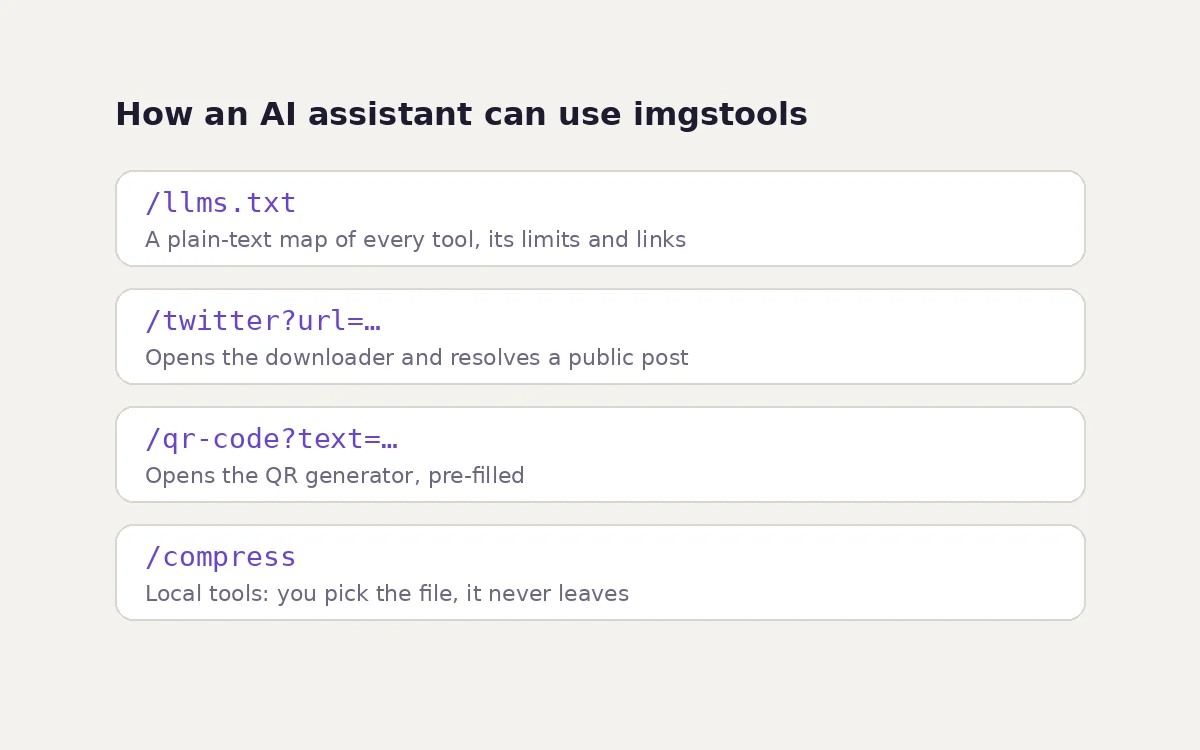
The file at /llms.txt is a plain-text description of the whole site, following the llms.txt convention: a short, structured overview meant for language models rather than people. For every tool it lists:
- what the tool does and its main capabilities;
- its limits, such as "private accounts cannot be read" or "GIF conversion uses the first 30 seconds";
- frequently asked questions with answers;
- any deep link the tool supports;
- every guide on the site.
It is generated from the same catalogue that builds the tool pages, so it stays in step with what the tools really do. If you use an assistant with web access, you can point it there directly: "Read imgstools.com/llms.txt and tell me which tool converts PNG to WebP."
Deep links: open a tool with the work already filled in
Some tools accept settings in the address, so an assistant can give you a link that opens the tool ready to go:
| Link | What it does |
|---|---|
| /qr-code?text=your text or link | Opens the QR generator with the content pre-filled. A link becomes a URL code; other text becomes a text code. |
| /qr-code?mode=scan | Opens the QR scanner instead. |
| /twitter?url=post link | Opens the X downloader with the post filled in and resolves it once. |
| /instagram?url=post link | Same for a public Instagram post, reel or story link. |
| /tiktok?url=post link | Same for a public TikTok video or slideshow. |
| /facebook?url=post link | Same for a public Facebook post, reel or video. |
The text after = must be URL-encoded: spaces become %20, and characters like & and ? are escaped. Assistants generally do this correctly if you ask for "a URL-encoded link". The downloader links accept only http and https addresses, and opening one only resolves the post. Nothing is downloaded until you choose a file. The QR link never triggers a download on its own either.
Example prompts:
- "Give me an imgstools link that makes a QR code for https://example.com/menu." A good answer is https://imgstools.com/qr-code?text=https%3A%2F%2Fexample.com%2Fmenu
- "Here is a public X post. Give me the imgstools link to save its video." The answer should be the /twitter?url= link with the post address encoded.
The image editors: why there's no "upload by link"
Compress, resize, convert, crop, rotate, enhance and filters have no deep link that loads an image, and that is deliberate. These tools process your file inside your browser and never upload it. A link can't carry your private photo, and the site has no server-side copy to point to.
That gives you two good ways to combine them with an assistant:
- Let the assistant plan, then do the step yourself. Assistants are good at the arithmetic: "I need this 4032 × 3024 photo cropped to 4:5 and under 200 KB. What numbers should I use?" Then apply the answer in the crop tool and the compressor. Our guides give the same numbers in tables, including crop sizes for every ratio and pixel budgets for file-size limits.
- Let a browser agent operate the page on your computer. An agent that controls a browser on your own machine can open a tool, choose a file you point it to, set the controls and download the result. The file still never leaves your device, because the processing happens in that browser.
A privacy advantage worth using
If you ask a chatbot to edit a photo directly, the photo is uploaded to the AI provider. If you only need a mechanical edit, such as a crop, a resize, a format change or removing location data, doing it in a local tool keeps the photo on your device. Then you upload only the result, if you still need the AI to look at it. Our guide to how AI chatbots see your images explains why a cropped, resized upload also tends to get better answers.
What assistants can't do with imgstools
- Use a private API. imgstools has no public API, and the downloader endpoints are meant for the site's own pages, not for bulk automation.
- Reach private social media. The downloaders only see what a logged-out visitor can see. Private accounts, removed posts and expired stories are out of reach for any assistant too.
- Batch-process folders. The tools handle one image at a time.
- Promise results from a platform. Whether a public post resolves depends on what the platform exposes at that moment.
Tips for reliable results
- Name the tool and the setting. "Use imgstools to convert to WebP at quality 80" gets a more useful answer than "make it smaller".
- Ask for the link, then check it. Before opening a deep link, glance at it: it should start with https://imgstools.com/ and contain the content you expect.
- Keep originals. Whether a person or an agent does the edit, work on a copy. See our JPEG re-saving test for why that matters.
- Respect content rights. An assistant can find and resolve a public post as easily as you can, but the rules on reusing it are the same. Our guide to saving social media responsibly covers them.
Method
The deep-link behaviour described here comes from the imgstools source. The downloader pages read a ?url= parameter, accept only http(s) addresses, and resolve them once when the page opens. The QR page reads ?text=, ?url= and ?mode= and never starts a download. The llms.txt file is generated at build time from the site's tool catalogue and guide list.
Keep exploring
More from imgstools
Will Your QR Code Scan? We Tested Logos, Contrast, Blur and Margins
Read note
Why GIFs on X (Twitter) Download as MP4 Videos, and How to Get a Real .gif
Read note